Loading home
Loading home
Skip to content
Blog
  1. Blog
  2. /
  3. Workflow guides
  4. /
  5. Thesis format check in Lattuce — upload Word, fix layout, verify before you submit

August 30, 2026 · Workflow guides

Thesis format check in Lattuce — upload Word, fix layout, verify before you submit

Upload your thesis Word file, run a publication checklist, apply safe auto-fixes, and compare original vs formatted with highlighted issues in Lattuce Writer.

  • guide
  • writer
  • thesis
  • docx
  • formatting
  • seo

Graduate students lose days to Word formatting — wrong margins on the cover page, Roman numerals in the preliminary section, double spacing that slipped back to single. You already wrote the thesis. The last mile is tedious and easy to miss.

Format mode in Lattuce Writer is a checklist-driven pass over your .docx file: upload your near-final Word document, see what fails, apply safe automatic fixes where the tool is confident, and keep a side-by-side preview so you can see what changed. It does not replace your supervisor, the graduate school, or a careful read in Word — it catches repeatable layout mistakes early.
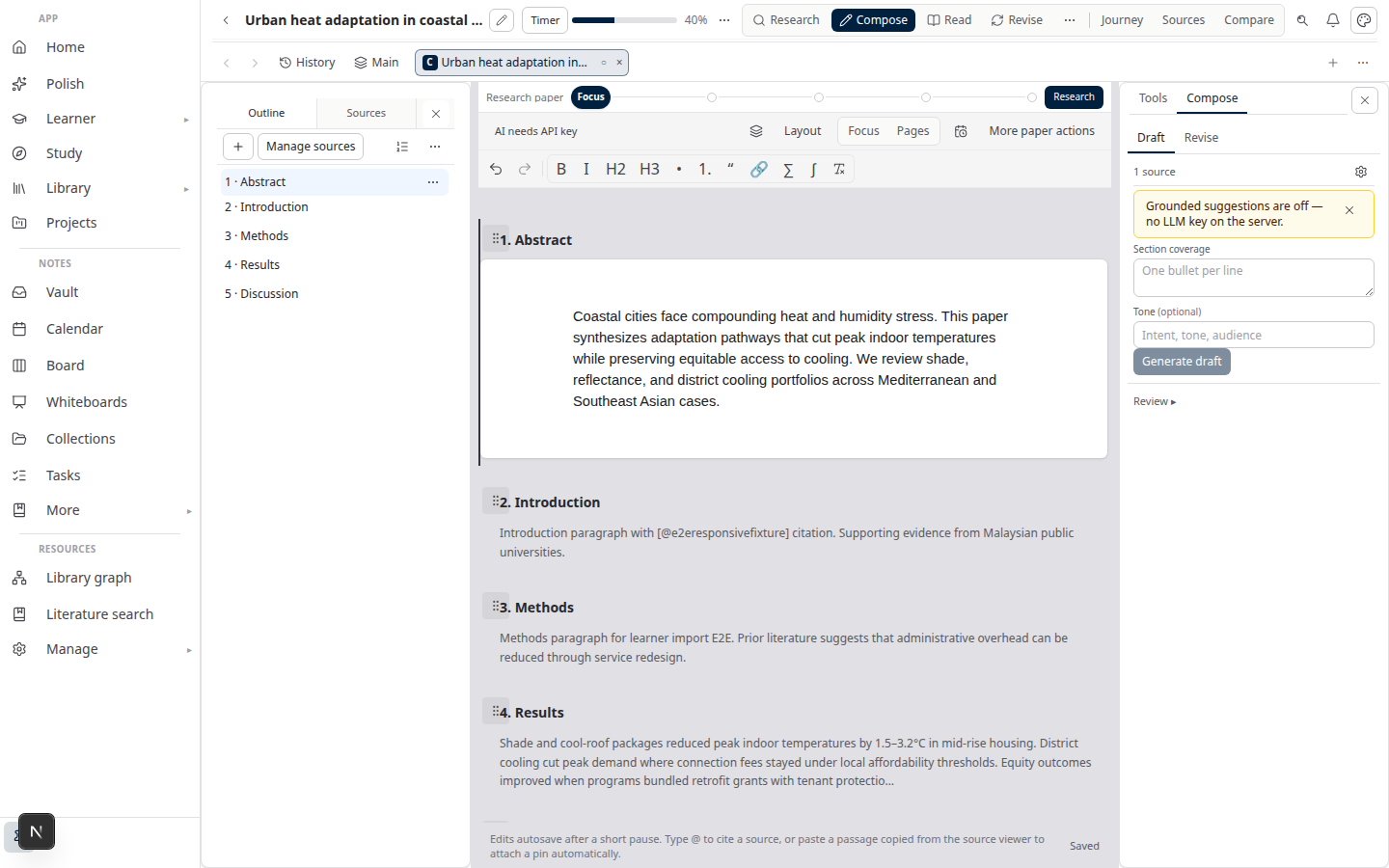
Lattuce Writer — citation styles and manuscript export

Who this is for

You are…Format mode helps when…
Thesis or dissertation authorYou have a Word file and a faculty checklist (fonts, margins, spacing, page numbering)
Bilingual thesis writer (BM/BI)You need Senate-style layout rules checked against a structured list, not memory
Lab admin or co-authorYou want a transparent report (pass / fail / fixed / manual) before the student submits

If you are still writing chapters from sources and citations, start in Compose and export to Word later (sources to DOCX). Format mode is for the layout pass on an existing .docx.

Before you start

You needNotes
A paper project in LattuceLibrary → Papers → New paper (or open your thesis project)
A Word file (.docx)Near-final thesis — not a PDF scan
Access to WriterFormat lives under your paper workspace, same as Compose and Research
A supported checklistToday: UM Thesis Formatting Checklist (BM/BI) — cover, title page, preliminary, main body, back matter. More checklists can be added over time

Format check runs in your Lattuce account at lattuce.app with your paper data — no separate formatting SaaS. For what is available today, see where you can use Lattuce.

How it works (overview)

  1. Upload your thesis .docx and pick a checklist.
  2. Run check — each rule reports pass, fail, manual, or unsupported.
  3. Review the list — click a row to highlight the matching area in the preview when possible.
  4. Apply fixes — safe layout patches (fonts, margins, spacing, some numbering) run on a copy; your upload stays as the original.
  5. Verify — after fixes, Lattuce re-runs the checklist on the formatted copy and marks items fixed only when they truly passed.
  6. Download original or formatted Word files for final review in Microsoft Word.

You always get two panes when a formatted copy exists: Original on the left, Formatted on the right, with optional sync scroll and highlight overlays for failures and changes.

Step-by-step

1 — Open Format mode

  1. Open your paper from Library or Papers.
  2. In the workspace mode tabs, choose Format (or open /papers/your-slug/format).
  3. If you do not see Format in the tab bar, use More workspace modes — it is grouped with Compose, Read, and Revise.

2 — Choose checklist and upload

  1. Under Checklist, select UM Thesis Formatting Checklist (BM/BI) (or the checklist your admin provides).
  2. Click Upload DOCX and select your thesis file.
  3. Wait for the job to finish — progress appears in the toolbar.

Lattuce stores your upload as the original copy for this paper. Re-upload if you replace the file with a newer draft.

3 — Run check (or re-check)

After upload, a check usually runs automatically. To scan again after you edit outside Lattuce:

  1. Click Run check.
  2. Read the summary in the checklist panel: pass · fail · fixed · manual.

Each row shows a short label tied to the faculty checklist (for example cover font size, main body double spacing, abstract word count).

4 — Understand the results

StatusMeaning
PassRule satisfied on the current file
FailLayout or text rule did not match — may be auto-fixable (right-click or detail panel for scoped apply)
FixedFailed before apply, was patched, and passed on verify
ManualHuman step — signature, print layout check, full APA review
UnsupportedRule not automated yet

Section labels (cover, preliminary, main body) are inferred from headings and patterns in your document. Unusual thesis structures may mis-target a rule — treat odd results as a signal to open Word, not as a final verdict.

Preview highlights are approximate anchors in the rendered view. Always confirm critical fixes in Word before submission.

5 — Apply fixes

  1. Click Apply fixes to patch the formatted copy (original upload unchanged).
  2. Optional: Dry run previews what would change without writing the formatted file.
  3. For single-section Word files (cover + title + preliminary + body in one section), Lattuce may show Section breaks recommended. Use Insert break on a row, or Re-shell to rebuild section breaks and margins from the committed UM checklist shell (.dotx) before style fixes run.
  4. Right-click a failing checklist row or a highlighted paragraph in the preview → Apply or Dry run for that rule only (scoped apply).
  5. After apply, a verify banner summarizes post-fix counts when verification ran.

Typical automatic fixes include:

  • Section breaks where cover, title page, preliminary, and main body need separate Word sections (margins and Roman/decimal numbering).
  • Times New Roman sizes on detected sections, margin corrections, double spacing on body paragraphs that failed the rule, and preliminary Roman numeral setup.

Items like signed declaration stay manual. APA citations are advisory only — Lattuce may flag APA-like or numeric citation shapes, but citations never auto-pass; references always need your eye.

6 — Compare and download

  1. Turn on Sync scroll to move through original and formatted together.
  2. Turn on Show changes on formatted to emphasize patched paragraphs.
  3. Use Download original or Download formatted when you are ready to finish in Word.

Submit the file your school expects — usually the formatted copy after you agree with the changes, or your own merge in Word.

Two common workflows

Path A — Export from Lattuce, then format

  1. Write and cite in Compose (literature review guide).
  2. Export to Word when sections are approved.
  3. Open the same paper in Format, upload the export (or a saved copy), run the checklist.

Path B — Word-first thesis, check in Lattuce

  1. Keep writing in Word or Scrivener (Scrivener vs Lattuce).
  2. When chapters are stable, upload the combined .docx to a Lattuce paper.
  3. Run Format mode before graduate-school submission.

If you also need EN↔MS chapter translation, that is a separate collaborative workflow (thesis chapter translation) — Format mode does not translate text.

What Format mode does not do

  • Replace Word — final pagination, odd section breaks, and print preview still belong in Word.
  • Guarantee faculty approval — checklists mirror published rules; your school may update requirements.
  • Fix citations completely — bibliography and APA nuance need human review.
  • Edit your Lattuce Compose draft directly — it works on uploaded .docx files; merge formatted output back into your writing flow manually if needed.

Related reading

  • Literature review with Lattuce — research and writing before export
  • Sources to DOCX — full manuscript export path
  • Scrivener vs Lattuce — when you draft outside Lattuce
  • Translate a thesis chapter — bilingual segments, not layout
  • Where you can use Lattuce today — cloud now; apps on the way
PreviousStudy vs Learner in Lattuce — exam prep or language learning?NextBYOK on Lattuce — bring your own AI keys

Workflow guides

  1. 1. Where you can use Lattuce today — cloud, Windows, and Android
  2. 2. Lattuce at lattuce.app is in alpha — what that means for you
  3. 3. Try Lattuce without signing up — interactive demos at lattuce.app/try
  4. 4. Leaving Lattuce cleanly — try first, delete when you need to
  5. 5. Literature review with Lattuce — from search to a cited Word file
  6. 6. Study vs Learner in Lattuce — exam prep or language learning?
  7. You are here7. Thesis format check in Lattuce — upload Word, fix layout, verify before you submit
  8. 8. BYOK on Lattuce — bring your own AI keys
  9. 9. Sources to DOCX in Lattuce — end-to-end manuscript workflow
  10. 10. BYOS on Lattuce — bring your own storage
  11. 11. Research missions in Lattuce — structured synthesis with evidence export
  12. 12. Use Lattuce from Cursor and Claude — your research in your IDE
  13. 13. Source Digest in Lattuce Study — audio, tables, mind maps, and flashcards
  14. 14. Workspace Ask for a household lab — grounded Q&A over your vault
  15. 15. Query canvas in Lattuce — live boards from your notes vault
  16. 16. Zotero to BibTeX in Lattuce — import, cite, and hand off bibliographies
  17. 17. Notes view layouts in Lattuce — Live, Read, and a sticky outline
  18. 18. Household admin's first week with Lattuce — checks and day-two tasks
  19. 19. Notes catalog layouts in Lattuce — Table, Board, Timeline, and saved views for your vault
  20. 20. Household billing and /pricing on Lattuce — transparent tiers for shared accounts
  21. 21. Version history in Lattuce — compare checkpoints, restore with confidence, and a three-tier workspace
  22. 22. Why Lattuce is not trying to replace Notion
  23. 23. Citation style preview in Lattuce — compare APA, MLA, Chicago, and more before you export
  24. 24. Research stack in 2026 — where Lattuce on lattuce.app sits
  25. 25. Supported citation formats in Lattuce — APA, Vancouver, Nature, and 27 more
  26. 26. Data residency for university labs in Malaysia
  27. 27. Why section approval beats realtime co-edit for academic papers
  28. 28. Research signals and feeds in Lattuce — headlines on home, sources in your library
  29. 29. Open catalogs Lattuce connects to — scholarly search, OA links, and books
  30. 30. How to export a cited thesis chapter to Word from Lattuce
  31. 31. Household Free vs Pro on lattuce.app — which plan fits your lab?
  32. 32. Try Lattuce Writer demo walkthrough — cited drafting without an account
  33. 33. Notes Live vs Read vs Split — when to use which in Lattuce
  34. 34. Citation styles for Malaysian universities in Lattuce Writer
  35. 35. From PDF highlight to cited paragraph in Lattuce
  36. 36. Leaving Notion pages in place — handoff checklist for Lattuce research
  37. 37. Alpha feedback — how to report useful bugs on lattuce.app

On this page

  1. Who this is for
  2. Before you start
  3. How it works (overview)
  4. Step-by-step
  5. 1 — Open Format mode
  6. 2 — Choose checklist and upload
  7. 3 — Run check (or re-check)
  8. 4 — Understand the results
  9. 5 — Apply fixes
  10. 6 — Compare and download
  11. Two common workflows
  12. Path A — Export from Lattuce, then format
  13. Path B — Word-first thesis, check in Lattuce
  14. What Format mode does not do
  15. Related reading

Explore Lattuce

Start writing, compare tools, or browse tutorials for your research stack.

Try LattuceTutorialsPlans

Subscribe to Workflow guides: RSS · Atom

← All posts
TermsPrivacyCookiesRefundsFAQContact[email protected]

© Lattuce

Skip to content
Blog
  1. Blog
  2. /
  3. Workflow guides
  4. /
  5. Thesis format check in Lattuce — upload Word, fix layout, verify before you submit

August 30, 2026 · Workflow guides

Thesis format check in Lattuce — upload Word, fix layout, verify before you submit

Upload your thesis Word file, run a publication checklist, apply safe auto-fixes, and compare original vs formatted with highlighted issues in Lattuce Writer.

  • guide
  • writer
  • thesis
  • docx
  • formatting
  • seo

Graduate students lose days to Word formatting — wrong margins on the cover page, Roman numerals in the preliminary section, double spacing that slipped back to single. You already wrote the thesis. The last mile is tedious and easy to miss.

Format mode in Lattuce Writer is a checklist-driven pass over your .docx file: upload your near-final Word document, see what fails, apply safe automatic fixes where the tool is confident, and keep a side-by-side preview so you can see what changed. It does not replace your supervisor, the graduate school, or a careful read in Word — it catches repeatable layout mistakes early.

Lattuce Writer — citation styles and manuscript export

Who this is for

You are…Format mode helps when…
Thesis or dissertation authorYou have a Word file and a faculty checklist (fonts, margins, spacing, page numbering)
Bilingual thesis writer (BM/BI)You need Senate-style layout rules checked against a structured list, not memory
Lab admin or co-authorYou want a transparent report (pass / fail / fixed / manual) before the student submits

If you are still writing chapters from sources and citations, start in Compose and export to Word later (sources to DOCX). Format mode is for the layout pass on an existing .docx.

Before you start

You needNotes
A paper project in LattuceLibrary → Papers → New paper (or open your thesis project)
A Word file (.docx)Near-final thesis — not a PDF scan
Access to WriterFormat lives under your paper workspace, same as Compose and Research
A supported checklistToday: UM Thesis Formatting Checklist (BM/BI) — cover, title page, preliminary, main body, back matter. More checklists can be added over time

Format check runs in your Lattuce account at lattuce.app with your paper data — no separate formatting SaaS. For what is available today, see where you can use Lattuce.

How it works (overview)

  1. Upload your thesis .docx and pick a checklist.
  2. Run check — each rule reports pass, fail, manual, or unsupported.
  3. Review the list — click a row to highlight the matching area in the preview when possible.
  4. Apply fixes — safe layout patches (fonts, margins, spacing, some numbering) run on a copy; your upload stays as the original.
  5. Verify — after fixes, Lattuce re-runs the checklist on the formatted copy and marks items fixed only when they truly passed.
  6. Download original or formatted Word files for final review in Microsoft Word.

You always get two panes when a formatted copy exists: Original on the left, Formatted on the right, with optional sync scroll and highlight overlays for failures and changes.

Step-by-step

1 — Open Format mode

  1. Open your paper from Library or Papers.
  2. In the workspace mode tabs, choose Format (or open /papers/your-slug/format).
  3. If you do not see Format in the tab bar, use More workspace modes — it is grouped with Compose, Read, and Revise.

2 — Choose checklist and upload

  1. Under Checklist, select UM Thesis Formatting Checklist (BM/BI) (or the checklist your admin provides).
  2. Click Upload DOCX and select your thesis file.
  3. Wait for the job to finish — progress appears in the toolbar.

Lattuce stores your upload as the original copy for this paper. Re-upload if you replace the file with a newer draft.

3 — Run check (or re-check)

After upload, a check usually runs automatically. To scan again after you edit outside Lattuce:

  1. Click Run check.
  2. Read the summary in the checklist panel: pass · fail · fixed · manual.

Each row shows a short label tied to the faculty checklist (for example cover font size, main body double spacing, abstract word count).

4 — Understand the results

StatusMeaning
PassRule satisfied on the current file
FailLayout or text rule did not match — may be auto-fixable (right-click or detail panel for scoped apply)
FixedFailed before apply, was patched, and passed on verify
ManualHuman step — signature, print layout check, full APA review
UnsupportedRule not automated yet

Section labels (cover, preliminary, main body) are inferred from headings and patterns in your document. Unusual thesis structures may mis-target a rule — treat odd results as a signal to open Word, not as a final verdict.

Preview highlights are approximate anchors in the rendered view. Always confirm critical fixes in Word before submission.

5 — Apply fixes

  1. Click Apply fixes to patch the formatted copy (original upload unchanged).
  2. Optional: Dry run previews what would change without writing the formatted file.
  3. For single-section Word files (cover + title + preliminary + body in one section), Lattuce may show Section breaks recommended. Use Insert break on a row, or Re-shell to rebuild section breaks and margins from the committed UM checklist shell (.dotx) before style fixes run.
  4. Right-click a failing checklist row or a highlighted paragraph in the preview → Apply or Dry run for that rule only (scoped apply).
  5. After apply, a verify banner summarizes post-fix counts when verification ran.

Typical automatic fixes include:

  • Section breaks where cover, title page, preliminary, and main body need separate Word sections (margins and Roman/decimal numbering).
  • Times New Roman sizes on detected sections, margin corrections, double spacing on body paragraphs that failed the rule, and preliminary Roman numeral setup.

Items like signed declaration stay manual. APA citations are advisory only — Lattuce may flag APA-like or numeric citation shapes, but citations never auto-pass; references always need your eye.

6 — Compare and download

  1. Turn on Sync scroll to move through original and formatted together.
  2. Turn on Show changes on formatted to emphasize patched paragraphs.
  3. Use Download original or Download formatted when you are ready to finish in Word.

Submit the file your school expects — usually the formatted copy after you agree with the changes, or your own merge in Word.

Two common workflows

Path A — Export from Lattuce, then format

  1. Write and cite in Compose (literature review guide).
  2. Export to Word when sections are approved.
  3. Open the same paper in Format, upload the export (or a saved copy), run the checklist.

Path B — Word-first thesis, check in Lattuce

  1. Keep writing in Word or Scrivener (Scrivener vs Lattuce).
  2. When chapters are stable, upload the combined .docx to a Lattuce paper.
  3. Run Format mode before graduate-school submission.

If you also need EN↔MS chapter translation, that is a separate collaborative workflow (thesis chapter translation) — Format mode does not translate text.

What Format mode does not do

  • Replace Word — final pagination, odd section breaks, and print preview still belong in Word.
  • Guarantee faculty approval — checklists mirror published rules; your school may update requirements.
  • Fix citations completely — bibliography and APA nuance need human review.
  • Edit your Lattuce Compose draft directly — it works on uploaded .docx files; merge formatted output back into your writing flow manually if needed.

Related reading

  • Literature review with Lattuce — research and writing before export
  • Sources to DOCX — full manuscript export path
  • Scrivener vs Lattuce — when you draft outside Lattuce
  • Translate a thesis chapter — bilingual segments, not layout
  • Where you can use Lattuce today — cloud now; apps on the way
PreviousStudy vs Learner in Lattuce — exam prep or language learning?NextBYOK on Lattuce — bring your own AI keys

Workflow guides

  1. 1. Where you can use Lattuce today — cloud, Windows, and Android
  2. 2. Lattuce at lattuce.app is in alpha — what that means for you
  3. 3. Try Lattuce without signing up — interactive demos at lattuce.app/try
  4. 4. Leaving Lattuce cleanly — try first, delete when you need to
  5. 5. Literature review with Lattuce — from search to a cited Word file
  6. 6. Study vs Learner in Lattuce — exam prep or language learning?
  7. You are here7. Thesis format check in Lattuce — upload Word, fix layout, verify before you submit
  8. 8. BYOK on Lattuce — bring your own AI keys
  9. 9. Sources to DOCX in Lattuce — end-to-end manuscript workflow
  10. 10. BYOS on Lattuce — bring your own storage
  11. 11. Research missions in Lattuce — structured synthesis with evidence export
  12. 12. Use Lattuce from Cursor and Claude — your research in your IDE
  13. 13. Source Digest in Lattuce Study — audio, tables, mind maps, and flashcards
  14. 14. Workspace Ask for a household lab — grounded Q&A over your vault
  15. 15. Query canvas in Lattuce — live boards from your notes vault
  16. 16. Zotero to BibTeX in Lattuce — import, cite, and hand off bibliographies
  17. 17. Notes view layouts in Lattuce — Live, Read, and a sticky outline
  18. 18. Household admin's first week with Lattuce — checks and day-two tasks
  19. 19. Notes catalog layouts in Lattuce — Table, Board, Timeline, and saved views for your vault
  20. 20. Household billing and /pricing on Lattuce — transparent tiers for shared accounts
  21. 21. Version history in Lattuce — compare checkpoints, restore with confidence, and a three-tier workspace
  22. 22. Why Lattuce is not trying to replace Notion
  23. 23. Citation style preview in Lattuce — compare APA, MLA, Chicago, and more before you export
  24. 24. Research stack in 2026 — where Lattuce on lattuce.app sits
  25. 25. Supported citation formats in Lattuce — APA, Vancouver, Nature, and 27 more
  26. 26. Data residency for university labs in Malaysia
  27. 27. Why section approval beats realtime co-edit for academic papers
  28. 28. Research signals and feeds in Lattuce — headlines on home, sources in your library
  29. 29. Open catalogs Lattuce connects to — scholarly search, OA links, and books
  30. 30. How to export a cited thesis chapter to Word from Lattuce
  31. 31. Household Free vs Pro on lattuce.app — which plan fits your lab?
  32. 32. Try Lattuce Writer demo walkthrough — cited drafting without an account
  33. 33. Notes Live vs Read vs Split — when to use which in Lattuce
  34. 34. Citation styles for Malaysian universities in Lattuce Writer
  35. 35. From PDF highlight to cited paragraph in Lattuce
  36. 36. Leaving Notion pages in place — handoff checklist for Lattuce research
  37. 37. Alpha feedback — how to report useful bugs on lattuce.app

On this page

  1. Who this is for
  2. Before you start
  3. How it works (overview)
  4. Step-by-step
  5. 1 — Open Format mode
  6. 2 — Choose checklist and upload
  7. 3 — Run check (or re-check)
  8. 4 — Understand the results
  9. 5 — Apply fixes
  10. 6 — Compare and download
  11. Two common workflows
  12. Path A — Export from Lattuce, then format
  13. Path B — Word-first thesis, check in Lattuce
  14. What Format mode does not do
  15. Related reading

Explore Lattuce

Start writing, compare tools, or browse tutorials for your research stack.

Try LattuceTutorialsPlans

Subscribe to Workflow guides: RSS · Atom

← All posts
TermsPrivacyCookiesRefundsFAQContact[email protected]

© Lattuce