From PDF highlight to cited paragraph in Lattuce
Skim a ready PDF, clip or highlight a passage, compose with cite chips, run a citation check, and approve the paragraph in Lattuce.
A chat summary of a PDF is not a cited paragraph. In Lattuce the short loop is skim → clip or highlight → compose with cite chips → citation check → approve. You keep the passage tied to a library source you can defend.
Work lives on lattuce.app. This guide is the one-paragraph path. For the full manuscript pipeline to Word, see Sources to DOCX in Lattuce. New here? Getting started.
Who this is for
| You are… | This guide helps when… |
|---|---|
| Thesis or article author | You marked a useful span in a PDF and need that claim in a cited draft |
| PI skimming tools | You want to see whether a highlight becomes a sentence you can defend, not a chat paste |
| Returning user with a reading pile | You already have PDFs and want the compose loop — not a full literature review |
Lattuce is the research-and-writing layer for a cited manuscript. It is not a Notion replacement, and it does not real-time co-edit paper sections.
If you still need to find papers and synthesize a whole review, start with literature review with Lattuce instead.
Before you start
| You need | Notes |
|---|---|
| A Lattuce account | Sign in at lattuce.app |
| A paper project | Library → Papers → New paper, or open an existing manuscript |
| A PDF (or Word file) | Upload it and wait until the library row shows ready |
| Writer workspace | You will open Compose, then Write to approve |
| AI (optional) | Add your own provider keys in account settings if you want Ask or compose help — BYOK on Lattuce |
No extra install. This path stays on your Lattuce account.
Steps
1 — Upload a PDF and wait until it is ready
- Open Library and upload the PDF (Word files work the same way).
- Wait until the row shows ready. Text extraction must finish before you can highlight, clip, or cite.
- Open the file in the library reader so the page sits beside your paper.
Do not compose against a still-processing row. Cite chips and citation checks only see attached, ready sources.
2 — Highlight or clip the passage
- Skim until you find the span you will use.
- Highlight it in the reader when you only need a mark on that PDF.
- Clip the passage when you want it as a reusable card — for example on a notes whiteboard later.
Highlights stay with the source in your library. Clips are for spatial or note work. Neither step writes the paragraph for you; they mark the evidence you will cite.
If you think in boards after you clip, query canvas can materialize matching notes as live cards. That is optional. The cited paragraph still happens in Compose.
3 — Attach the source to the paper
- Open the paper workspace.
- In the Sources left pane, attach the ready library row.
- Confirm the attachment still shows ready.
Attach as soon as the row is ready — before or after you highlight. Composition and citation checks only see sources on this paper. A clip on a whiteboard is not the same as an attached source.
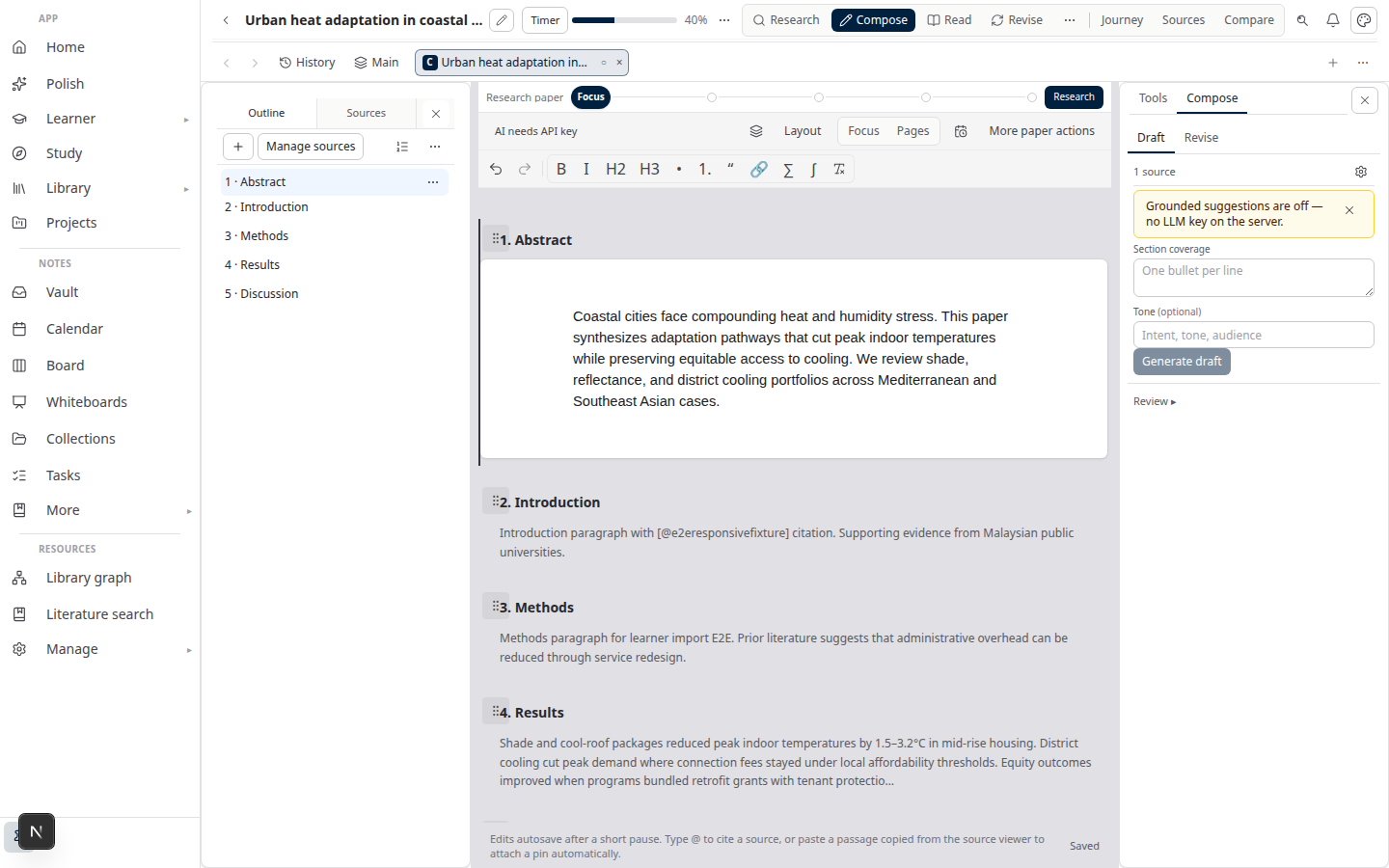
4 — Compose the paragraph with cite chips
- Open Compose (or Write if you are already in the section).
- Draft the sentence in your own words. Do not paste the PDF as if it were the manuscript.
- Insert a cite chip for the attached source so the claim points at real library metadata.
Need a first draft of the sentence? Open Ask, pose the question against the attached PDF, review the proposed text and cite chips, then Insert only if the wording is accurate — Workspace Ask. Treat Ask like any AI draft: you still own the claim.
Every cite chip maps to a library row you uploaded or imported. Lattuce does not invent bibliography entries from chat memory.
5 — Run a citation check
- Run citation checks on the section.
- Fix or remove anything the verifier flags.
- Typical fixes: attach the missing source, rewrite the sentence so it matches the PDF, or drop the claim.
A clean style preview (APA, Harvard, Vancouver, and the rest) is not the same job. Citation checks test whether the claim sits in an attached source. Style preview only formats markers — see supported citation formats when you lock a paper-wide style.
6 — Approve the section
- Open Write (or the section list on the paper).
- Read the paragraph once more against the highlight or clip.
- Mark the section approved when the prose and cite chips are what you would show a supervisor.
Unapproved sections stay out of export. That gate is intentional: academic export needs a decision, not a live shared cursor.
When the rest of the chapter is ready, continue with Sources to DOCX.
Key concepts
Ready means extractable. A PDF you can open in a desktop reader is not enough. The library row must show ready before highlights, clips, cite chips, and citation checks can use it.
Highlight vs clip. A highlight marks a span on the source. A clip keeps that passage as a card you can place on a whiteboard or note. Compose cites the attached source, not the board.
Cite chips are library rows. They carry the metadata you uploaded or imported. If the chip is missing, attach the ready source and insert the citation again.
Citation check ≠ approval. The check flags unsupported claims. Approve is the later decision that the section may leave in a Word export.
Troubleshooting
| Symptom | Likely cause | Fix |
|---|---|---|
| Nothing to highlight or clip | The file is still extracting, or you opened a metadata-only row | Wait for ready, or upload the PDF (not only a reference record) |
| Cite chip will not insert | Source is not attached to this paper | Attach the ready library row in Sources, then cite again |
| Citation check flags the sentence | The claim is not in an attached PDF | Add the source, rewrite to match the passage, or drop the claim |
| Clip is on a board but missing from Compose | The whiteboard is notes/canvas, not the paper library | Attach the source and insert the cite chip in Compose |
| Export is missing the paragraph | The section is not approved | Approve it in Write, then export again |
Related reading
- Sources to DOCX in Lattuce — library through missions, compose, approval, and Word
- Literature review with Lattuce — search, evidence matrix, then cited draft
- Query canvas in Lattuce — live boards from vault notes and clips
- Workspace Ask for a household lab — grounded insert with cite chips
- Getting started — sign in and pick a starting point
Bottom line
From PDF highlight to cited paragraph is one loop: wait until the file is ready, mark the span (highlight or clip), attach the source, write the sentence with a cite chip, run a citation check, and approve the section. The paragraph is done when you can point at the library row — not when a chat restated the page.
Bahasa Melayu: Dari sorotan PDF ke perenggan bersitasi dalam Lattuce