Loading home
Loading home
Skip to content
Blog
  1. Blog
  2. /
  3. Workflow guides
  4. /
  5. Notes view layouts in Lattuce — Live, Read, and a sticky outline

August 6, 2026 · Workflow guides

Notes view layouts in Lattuce — Live, Read, and a sticky outline

Live, Read, and Split note layouts in Lattuce — a sticky outline rail follows your headings, tablet stacked editing, and structure editing stays in Tools.

  • guide
  • notes
  • writer
  • ux
  • seo

Lecture notes and chapter drafts rarely stay short. The notes vault at lattuce.app now treats how you view a note and how the layout fits your screen as one system — so you can write, read, and jump between sections without losing context.

Before you start

You needWhy
A Lattuce account at lattuce.appNotes vault lives in the cloud workspace
A note with at least two headingsThe sticky outline rail appears only when sections exist

Open Notes, pick a note with headings, and choose a view mode from the header (or the mobile writing toolbar on tablet and phone). You can also open the Notes demo without an account.
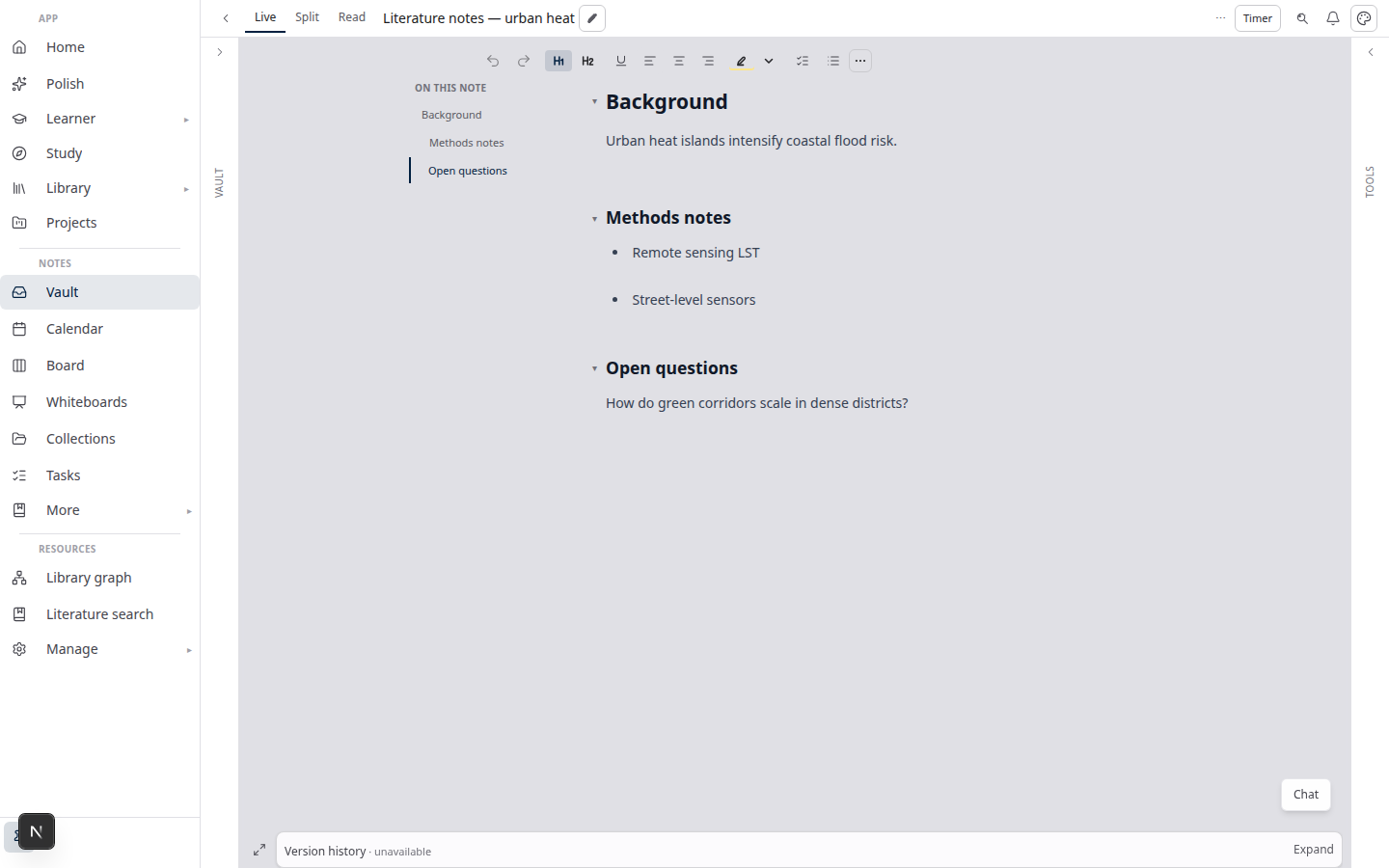
Notes demo — Live editor and vault tools

Three view modes

ModeLabel in the UIWhat you seeBest for
LiveLiveFormatted editing (Obsidian-style live preview) with inline formattingDay-to-day writing, lecture capture, drafting
ReadReadFormatted preview only — no editor chromeReviewing, presenting, sharing a read-only link
Source + previewSource + preview (Split on compact chrome)Raw markdown beside the formatted previewTables, paste-heavy edits, checking source syntax

Your choice is remembered between sessions. On phone layouts the toolbar offers Edit and Read preview; split source + preview appears on wider split-pane workspaces.

Read-first entry: opening a note with ?view=preview lands in Read with a prominent path back to editing — useful when you share a note as reading material, not as a draft.

Layout by screen size

The vault adapts the note column to the device you are on:

BandApprox. widthVault layoutNote column
Phone≤767pxStacked panes (list ↔ note)One surface at a time — Live or Read
Tablet768–1023pxVault, note, and Tools side by sideIn Live, editor and read preview stacked so you see formatting while you type
Desktop≥1024pxFull workspace with resizable Vault and ToolsLive shows the editor; Read shows preview; Split shows source + preview

On tablet, you still get the mobile writing toolbar — Edit note, insert blocks, links/tools, undo, and Read preview — without hunting through overflow menus.

Beside notes (note2= in the URL) use the same stacked Live + read preview on tablet. Deep links to headings stay on the editing surface so outline clicks and shared URLs land in the right section.

Sticky outline rail

When a note has at least two headings, Live and Read can show a section navigator beside the document:

  • Wide layouts — a sticky left rail (“On this note”) with scroll spy: the active section highlights as you scroll.
  • Narrow layouts — the same sections appear as horizontal chips above the content.

Click a section to scroll smoothly to that heading and set a #heading-id in the URL — handy for deep links and for picking up where you left off.

In Live, outline clicks stay in Live. The rail does not force a switch to Read just to jump to “Methods” or “Results.”

Navigation vs structure editing

The sticky rail is navigation only. Reorder headings, promote/demote levels, fold sections, and drag-and-drop outline edits remain in Tools → Edit outline.

That split keeps the rail fast and readable while power-user structure work stays in one predictable place — especially on wide layouts where the Tools column is already open.

The rail hides when you already have enough navigation on screen — for example focus-writing mode, a second note open beside the first, or a dedicated outline column in Tools.

Tablet stacked Live + preview

On tablet widths, Live can show the editor and the read preview at once. You edit with live formatting in the top pane and see the fully rendered note below.

When both panes are visible, section links stay tied to the editor so outline clicks and browser hash URLs scroll to the right heading without jumping between panes.

Tips

  1. Long reading — switch to Read and use the sticky rail instead of scrolling past blocks you already know.
  2. Raw markdown fixes — use Source + preview on desktop when you need to see pipes and fences beside the rendered output.
  3. Fold sections in preview — use Tools → Edit outline (label click on headings with body text toggles fold; use the context menu “Scroll to heading” when you want navigation instead).
  4. Beside notes on tablet — open a second note with note2= in the URL; the pinned beside pane uses the same stacked live + preview pattern.

Related reading

  • Try Lattuce without sign-up — open Notes from the /try hub
  • Notion vs Lattuce — where the notes vault fits in the research stack
  • Lattuce vs research apps — comparisons hub (more apps on the calendar)

Bottom line

Live for writing with formatting, Read for clean review, Source + preview when you need the raw file beside the rendered page — and a sticky outline in Live and Read so long notes stay navigable on laptop, tablet, and phone. Structure editing stays in Tools; the rail is for moving through the note, not restructuring it.

PreviousZotero to BibTeX in Lattuce — import, cite, and hand off bibliographiesNextHousehold admin's first week with Lattuce — checks and day-two tasks

Workflow guides

  1. 1. Where you can use Lattuce today — cloud, Windows, and Android
  2. 2. Lattuce at lattuce.app is in alpha — what that means for you
  3. 3. Try Lattuce without signing up — interactive demos at lattuce.app/try
  4. 4. Leaving Lattuce cleanly — try first, delete when you need to
  5. 5. Literature review with Lattuce — from search to a cited Word file
  6. 6. Study vs Learner in Lattuce — exam prep or language learning?
  7. 7. Thesis format check in Lattuce — upload Word, fix layout, verify before you submit
  8. 8. BYOK on Lattuce — bring your own AI keys
  9. 9. Sources to DOCX in Lattuce — end-to-end manuscript workflow
  10. 10. BYOS on Lattuce — bring your own storage
  11. 11. Research missions in Lattuce — structured synthesis with evidence export
  12. 12. Use Lattuce from Cursor and Claude — your research in your IDE
  13. 13. Source Digest in Lattuce Study — audio, tables, mind maps, and flashcards
  14. 14. Workspace Ask for a household lab — grounded Q&A over your vault
  15. 15. Query canvas in Lattuce — live boards from your notes vault
  16. 16. Zotero to BibTeX in Lattuce — import, cite, and hand off bibliographies
  17. You are here17. Notes view layouts in Lattuce — Live, Read, and a sticky outline
  18. 18. Household admin's first week with Lattuce — checks and day-two tasks
  19. 19. Notes catalog layouts in Lattuce — Table, Board, Timeline, and saved views for your vault
  20. 20. Household billing and /pricing on Lattuce — transparent tiers for shared accounts
  21. 21. Version history in Lattuce — compare checkpoints, restore with confidence, and a three-tier workspace
  22. 22. Why Lattuce is not trying to replace Notion
  23. 23. Citation style preview in Lattuce — compare APA, MLA, Chicago, and more before you export
  24. 24. Research stack in 2026 — where Lattuce on lattuce.app sits
  25. 25. Supported citation formats in Lattuce — APA, Vancouver, Nature, and 27 more
  26. 26. Data residency for university labs in Malaysia
  27. 27. Why section approval beats realtime co-edit for academic papers
  28. 28. Research signals and feeds in Lattuce — headlines on home, sources in your library
  29. 29. Open catalogs Lattuce connects to — scholarly search, OA links, and books
  30. 30. How to export a cited thesis chapter to Word from Lattuce
  31. 31. Household Free vs Pro on lattuce.app — which plan fits your lab?
  32. 32. Try Lattuce Writer demo walkthrough — cited drafting without an account
  33. 33. Notes Live vs Read vs Split — when to use which in Lattuce
  34. 34. Citation styles for Malaysian universities in Lattuce Writer
  35. 35. From PDF highlight to cited paragraph in Lattuce
  36. 36. Leaving Notion pages in place — handoff checklist for Lattuce research
  37. 37. Alpha feedback — how to report useful bugs on lattuce.app

On this page

  1. Before you start
  2. Three view modes
  3. Layout by screen size
  4. Sticky outline rail
  5. Navigation vs structure editing
  6. Tablet stacked Live + preview
  7. Tips
  8. Related reading
  9. Bottom line

Explore Lattuce

Start writing, compare tools, or browse tutorials for your research stack.

Try LattuceTutorialsPlans

Subscribe to Workflow guides: RSS · Atom

← All posts
TermsPrivacyCookiesRefundsFAQContact[email protected]

© Lattuce

Skip to content
Blog
  1. Blog
  2. /
  3. Workflow guides
  4. /
  5. Notes view layouts in Lattuce — Live, Read, and a sticky outline

August 6, 2026 · Workflow guides

Notes view layouts in Lattuce — Live, Read, and a sticky outline

Live, Read, and Split note layouts in Lattuce — a sticky outline rail follows your headings, tablet stacked editing, and structure editing stays in Tools.

  • guide
  • notes
  • writer
  • ux
  • seo

Lecture notes and chapter drafts rarely stay short. The notes vault at lattuce.app now treats how you view a note and how the layout fits your screen as one system — so you can write, read, and jump between sections without losing context.

Before you start

You needWhy
A Lattuce account at lattuce.appNotes vault lives in the cloud workspace
A note with at least two headingsThe sticky outline rail appears only when sections exist

Open Notes, pick a note with headings, and choose a view mode from the header (or the mobile writing toolbar on tablet and phone). You can also open the Notes demo without an account.

Notes demo — Live editor and vault tools

Three view modes

ModeLabel in the UIWhat you seeBest for
LiveLiveFormatted editing (Obsidian-style live preview) with inline formattingDay-to-day writing, lecture capture, drafting
ReadReadFormatted preview only — no editor chromeReviewing, presenting, sharing a read-only link
Source + previewSource + preview (Split on compact chrome)Raw markdown beside the formatted previewTables, paste-heavy edits, checking source syntax

Your choice is remembered between sessions. On phone layouts the toolbar offers Edit and Read preview; split source + preview appears on wider split-pane workspaces.

Read-first entry: opening a note with ?view=preview lands in Read with a prominent path back to editing — useful when you share a note as reading material, not as a draft.

Layout by screen size

The vault adapts the note column to the device you are on:

BandApprox. widthVault layoutNote column
Phone≤767pxStacked panes (list ↔ note)One surface at a time — Live or Read
Tablet768–1023pxVault, note, and Tools side by sideIn Live, editor and read preview stacked so you see formatting while you type
Desktop≥1024pxFull workspace with resizable Vault and ToolsLive shows the editor; Read shows preview; Split shows source + preview

On tablet, you still get the mobile writing toolbar — Edit note, insert blocks, links/tools, undo, and Read preview — without hunting through overflow menus.

Beside notes (note2= in the URL) use the same stacked Live + read preview on tablet. Deep links to headings stay on the editing surface so outline clicks and shared URLs land in the right section.

Sticky outline rail

When a note has at least two headings, Live and Read can show a section navigator beside the document:

  • Wide layouts — a sticky left rail (“On this note”) with scroll spy: the active section highlights as you scroll.
  • Narrow layouts — the same sections appear as horizontal chips above the content.

Click a section to scroll smoothly to that heading and set a #heading-id in the URL — handy for deep links and for picking up where you left off.

In Live, outline clicks stay in Live. The rail does not force a switch to Read just to jump to “Methods” or “Results.”

Navigation vs structure editing

The sticky rail is navigation only. Reorder headings, promote/demote levels, fold sections, and drag-and-drop outline edits remain in Tools → Edit outline.

That split keeps the rail fast and readable while power-user structure work stays in one predictable place — especially on wide layouts where the Tools column is already open.

The rail hides when you already have enough navigation on screen — for example focus-writing mode, a second note open beside the first, or a dedicated outline column in Tools.

Tablet stacked Live + preview

On tablet widths, Live can show the editor and the read preview at once. You edit with live formatting in the top pane and see the fully rendered note below.

When both panes are visible, section links stay tied to the editor so outline clicks and browser hash URLs scroll to the right heading without jumping between panes.

Tips

  1. Long reading — switch to Read and use the sticky rail instead of scrolling past blocks you already know.
  2. Raw markdown fixes — use Source + preview on desktop when you need to see pipes and fences beside the rendered output.
  3. Fold sections in preview — use Tools → Edit outline (label click on headings with body text toggles fold; use the context menu “Scroll to heading” when you want navigation instead).
  4. Beside notes on tablet — open a second note with note2= in the URL; the pinned beside pane uses the same stacked live + preview pattern.

Related reading

  • Try Lattuce without sign-up — open Notes from the /try hub
  • Notion vs Lattuce — where the notes vault fits in the research stack
  • Lattuce vs research apps — comparisons hub (more apps on the calendar)

Bottom line

Live for writing with formatting, Read for clean review, Source + preview when you need the raw file beside the rendered page — and a sticky outline in Live and Read so long notes stay navigable on laptop, tablet, and phone. Structure editing stays in Tools; the rail is for moving through the note, not restructuring it.

PreviousZotero to BibTeX in Lattuce — import, cite, and hand off bibliographiesNextHousehold admin's first week with Lattuce — checks and day-two tasks

Workflow guides

  1. 1. Where you can use Lattuce today — cloud, Windows, and Android
  2. 2. Lattuce at lattuce.app is in alpha — what that means for you
  3. 3. Try Lattuce without signing up — interactive demos at lattuce.app/try
  4. 4. Leaving Lattuce cleanly — try first, delete when you need to
  5. 5. Literature review with Lattuce — from search to a cited Word file
  6. 6. Study vs Learner in Lattuce — exam prep or language learning?
  7. 7. Thesis format check in Lattuce — upload Word, fix layout, verify before you submit
  8. 8. BYOK on Lattuce — bring your own AI keys
  9. 9. Sources to DOCX in Lattuce — end-to-end manuscript workflow
  10. 10. BYOS on Lattuce — bring your own storage
  11. 11. Research missions in Lattuce — structured synthesis with evidence export
  12. 12. Use Lattuce from Cursor and Claude — your research in your IDE
  13. 13. Source Digest in Lattuce Study — audio, tables, mind maps, and flashcards
  14. 14. Workspace Ask for a household lab — grounded Q&A over your vault
  15. 15. Query canvas in Lattuce — live boards from your notes vault
  16. 16. Zotero to BibTeX in Lattuce — import, cite, and hand off bibliographies
  17. You are here17. Notes view layouts in Lattuce — Live, Read, and a sticky outline
  18. 18. Household admin's first week with Lattuce — checks and day-two tasks
  19. 19. Notes catalog layouts in Lattuce — Table, Board, Timeline, and saved views for your vault
  20. 20. Household billing and /pricing on Lattuce — transparent tiers for shared accounts
  21. 21. Version history in Lattuce — compare checkpoints, restore with confidence, and a three-tier workspace
  22. 22. Why Lattuce is not trying to replace Notion
  23. 23. Citation style preview in Lattuce — compare APA, MLA, Chicago, and more before you export
  24. 24. Research stack in 2026 — where Lattuce on lattuce.app sits
  25. 25. Supported citation formats in Lattuce — APA, Vancouver, Nature, and 27 more
  26. 26. Data residency for university labs in Malaysia
  27. 27. Why section approval beats realtime co-edit for academic papers
  28. 28. Research signals and feeds in Lattuce — headlines on home, sources in your library
  29. 29. Open catalogs Lattuce connects to — scholarly search, OA links, and books
  30. 30. How to export a cited thesis chapter to Word from Lattuce
  31. 31. Household Free vs Pro on lattuce.app — which plan fits your lab?
  32. 32. Try Lattuce Writer demo walkthrough — cited drafting without an account
  33. 33. Notes Live vs Read vs Split — when to use which in Lattuce
  34. 34. Citation styles for Malaysian universities in Lattuce Writer
  35. 35. From PDF highlight to cited paragraph in Lattuce
  36. 36. Leaving Notion pages in place — handoff checklist for Lattuce research
  37. 37. Alpha feedback — how to report useful bugs on lattuce.app

On this page

  1. Before you start
  2. Three view modes
  3. Layout by screen size
  4. Sticky outline rail
  5. Navigation vs structure editing
  6. Tablet stacked Live + preview
  7. Tips
  8. Related reading
  9. Bottom line

Explore Lattuce

Start writing, compare tools, or browse tutorials for your research stack.

Try LattuceTutorialsPlans

Subscribe to Workflow guides: RSS · Atom

← All posts
TermsPrivacyCookiesRefundsFAQContact[email protected]

© Lattuce