Notes Live vs Read vs Split — when to use which in Lattuce
Notes Live vs Read vs Split in Lattuce — when to write, review, or keep markdown beside the preview.
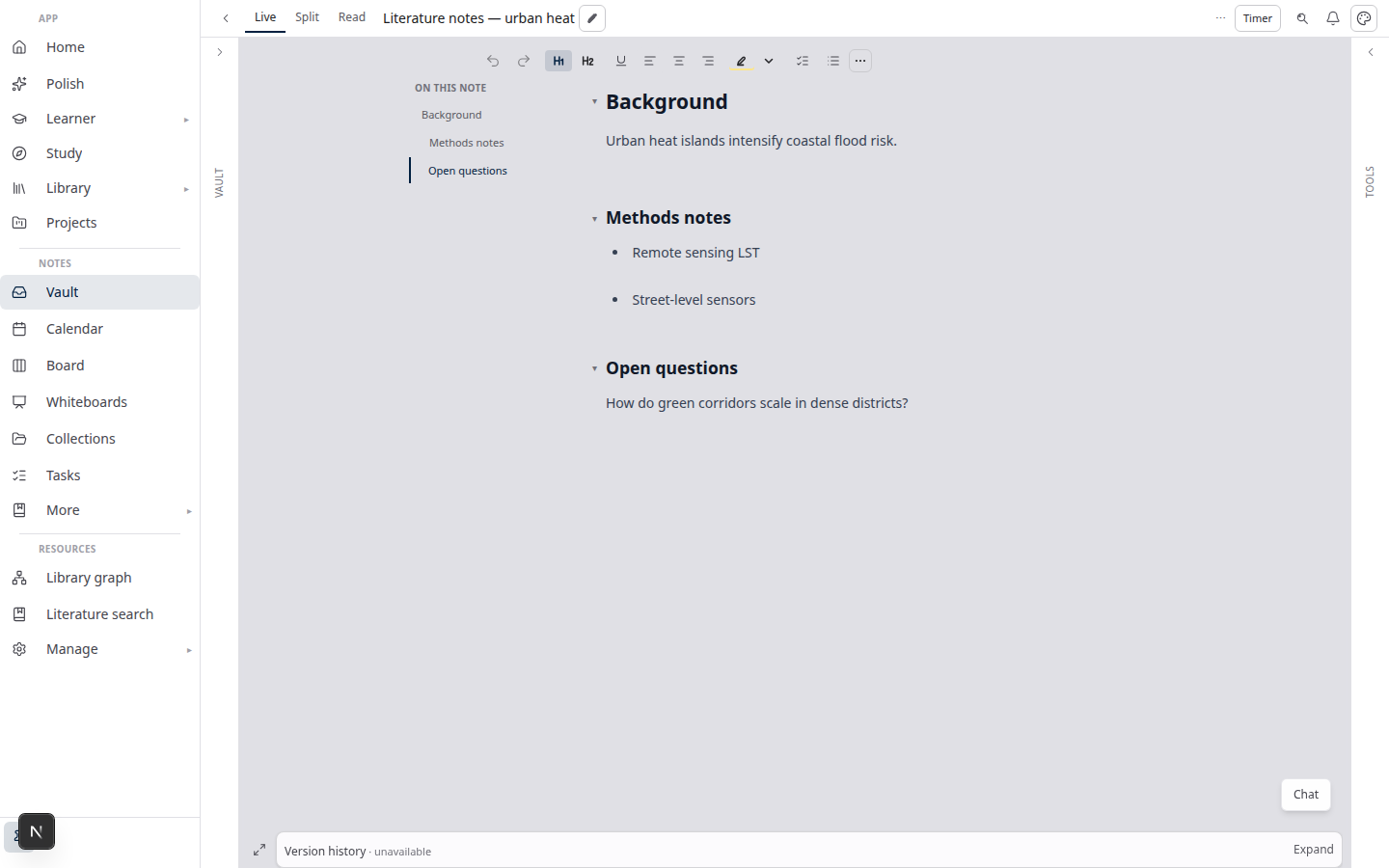
Lattuce notes layouts give you three ways to sit with a vault note: Live for formatted writing, Read for clean review, and Source + preview (Split on compact chrome) when the raw markdown must sit beside the rendered page.
This is a decision guide — when to pick which mode. For the full layout system (screen bands, tablet stacking, outline vs Tools), see Notes view layouts in Lattuce.
Who this is for
| You are… | This guide helps when… |
|---|---|
| Graduate student | You capture lectures in the vault and later tidy the same note |
| Thesis or paper author | You want a clean reading surface for yourself or a supervisor |
| Markdown-heavy writer | You are fixing tables, fences, or a messy paste |
Catalog browsing (Table, Board, Timeline) is a different surface — see Notes catalog layouts.
Before you start
| You need | Why |
|---|---|
| A Lattuce account at lattuce.app, or the Notes demo | Vault notes live in the cloud workspace |
| An open note | Modes apply to the note you are viewing, not the catalog |
| Two or more headings (optional) | The sticky outline appears only when sections exist |
Open Notes, pick a note, and choose a view from the header (or the mobile writing toolbar on tablet and phone). Lattuce remembers your last view mode between sessions.
Decision table
| Use | When | What you see |
|---|---|---|
| Live | Day-to-day writing, lecture capture, drafting | Formatted editing / live preview |
| Read | Reviewing, presenting, sharing a read-only path | Formatted preview only — no editor chrome |
| Source + preview (Split on compact chrome) | Tables, paste-heavy edits, checking syntax | Raw markdown beside the formatted preview |
On a phone, the toolbar offers Edit and Read preview. Split source + preview appears on wider workspaces.
Scenarios
Lecture capture — stay in Live
You are in a seminar and the note is growing as you type. Live keeps formatting visible while you write — headings, lists, and emphasis without dropping into raw markdown.
Stay in Live until the session ends. Switching to Read mid-capture hides the editor.
Supervisor review — switch to Read
The note is a reading packet, not a draft. Read hides editor chrome so the page looks like a document.
Share a read-only path, or open the note with ?view=preview so it lands in Read with a clear way back to editing. Present from Read when you do not want the cursor or markdown marks on screen.
Fixing markdown tables — use Source + preview
A pasted table broke alignment, or a fence did not close. Source + preview puts pipes and backticks beside the rendered grid so you can see what the syntax produced.
Use this on a laptop or other wide workspace. On a phone, edit in Edit, then flip to Read preview to check the result.
Tips
- Default to Live unless you are reviewing or debugging syntax.
- The last mode persists — Lattuce remembers Live, Read, or Split between sessions.
- Phone vs desk — Edit and Read preview on phone; Split when the workspace is wide enough.
- Long notes — in Live or Read, use the sticky outline once the note has at least two headings.
- Two “layouts” — this guide is one open note. Vault Table / Board / Timeline is the catalog (companion).
Bottom line
Live for writing, Read for review and presentation, Source + preview when the raw file must sit beside the rendered page. Pick the mode for the job; Lattuce remembers it. For chrome and screen bands, use the parent layout guide.
Related reading
- Notes view layouts in Lattuce — Live, Read, Split, sticky outline, and how the workspace fits your screen
- Notes catalog layouts in Lattuce — Table, Board, Timeline, and saved views for the vault list
- Try Lattuce without sign-up — open Notes from the
/tryhub
Bahasa Melayu: Nota Live vs Read vs Split — bila guna yang mana di Lattuce