Loading home
Loading home
Skip to content
Blog
  1. Blog
  2. /
  3. Workflow guides
  4. /
  5. Use Lattuce from Cursor and Claude — your research in your IDE

August 22, 2026 · Workflow guides

Use Lattuce from Cursor and Claude — your research in your IDE

Connect Cursor or Claude to your lattuce.app account so your AI assistant can search notes, read your library, and help with your papers.

  • guide
  • mcp
  • cursor
  • claude
  • ide
  • seo

For in-app help, ask the product assistant about MCP, local sync, and IDE tools (help doc mcp-and-local-sync).

Many researchers already use Cursor or Claude beside their writing — fixing prose, outlining a chapter, or asking an assistant to search what they read last week. Lattuce at lattuce.app can plug into those tools so the assistant works on your real notes, PDFs, and papers — not a blank chat window.
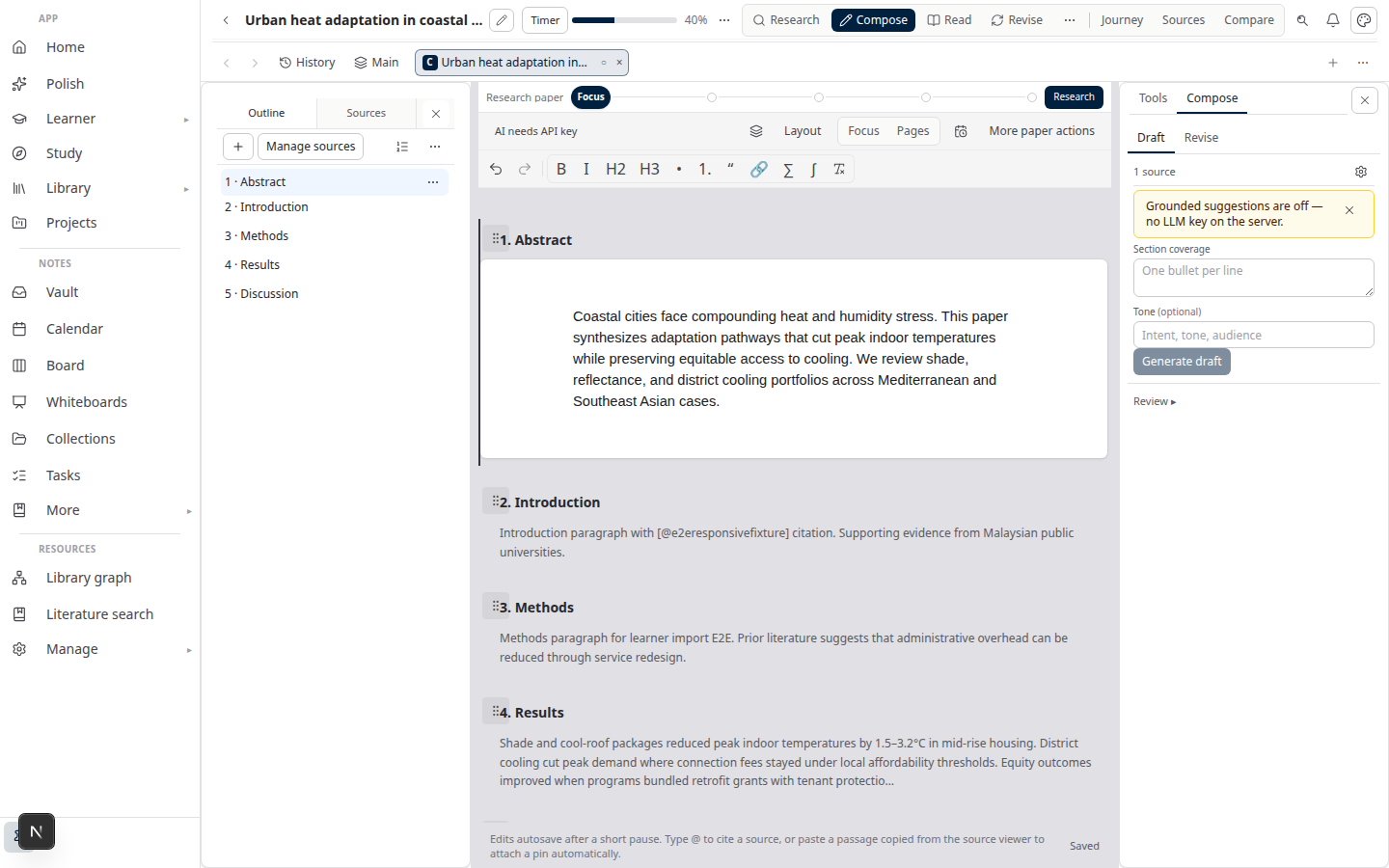
Lattuce research workspace you can connect from Cursor or Claude

You stay signed in at lattuce.app in the browser. When you connect your IDE, the assistant can reach the same library and vault you already use there.

Who this is for

You are…Why connect Lattuce to your IDE
Thesis or article authorAsk questions across your notes and sources while you edit in Cursor
Graduate studentGet study help and draft ideas grounded in PDFs you uploaded
Anyone juggling browser + IDEOne account at lattuce.app — no copying paragraphs back and forth

This is not how phone or desktop apps sync your notes offline. Sync keeps devices in step when you are away from the browser. The IDE connection is for online help from an AI assistant while you work in Cursor or Claude.

Before you start

You needWhat to do
A Lattuce accountSign in at lattuce.app
Cursor or Claude DesktopA recent version that supports connected apps (MCP)
A connection keyCreate one under Settings → Account → API access
Optional AI in LattuceAdd your own provider keys in settings if you want compose or study AI — see BYOK on Lattuce

Lattuce runs in the cloud at lattuce.app today. For what you can use now and what is coming on Windows and Android, see where you can use Lattuce.

How to connect (three steps)

  1. Sign in at lattuce.app.
  2. Open Settings → Account → API access and create a connection key. Copy it somewhere safe — like a password, not something you paste into public chats.
  3. In Cursor or Claude, add Lattuce as a connected app. Use the official cloud address lattuce.app and paste your connection key when the app asks.

Cursor and Claude change their settings screens from time to time. If the menus look different, open in-app help on MCP, local sync, and IDE tools (/help/mcp-and-local-sync) — step-by-step setup lives there.

When it works, you should see Lattuce listed as connected and be able to ask the assistant about your vault or library from the IDE.

What you can do once connected

The assistant can help with the same kinds of work you do in the browser — in plain language:

In LattuceFrom Cursor or Claude
Search and open notes“Find my note about methodology”
Read your PDF library“What do my sources say about sample size?”
Work on a paper“List my manuscripts” or “Help draft the methods section”
Study over your reading“Summarize this collection” or “Explain this concept from my course”
Ask across your workspace“What did I write about ethics across notes and papers?”

Nothing magical: the assistant still needs your permission before it changes notes or paper text. It should show you what it plans to do first. Read that preview before you approve — same care you would use in any AI tool.

Keep your connection key safe

  • Treat the key like a password. Do not share it or post it in issues, screenshots, or group chats.
  • IDE chat history can include what you asked. If a key might have leaked, revoke it in Settings → Account → API access and create a new one.

Browser or IDE — same account

You do not have to pick one. Many people write and read in the browser at lattuce.app and use Cursor or Claude when they want a coding-style editor or a second assistant window. Both see the same account when you are signed in.

How this fits with other tools

ToolPractical split
NotionKeep team wikis and runbooks in Notion; connect Lattuce to your IDE for papers and research notes
ObsidianLocal notes on your laptop if you like; Lattuce + IDE for library, citations, and Word export at lattuce.app
NotebookLMQuick digest in Google when you only need a chat; Lattuce when the work must become a cited paper

More detail: Using Lattuce alongside Notion · Obsidian vs Lattuce · NotebookLM vs Lattuce.

Bottom line

If you already use Cursor or Claude, you can connect lattuce.app so your assistant works on your real research — notes, PDFs, and papers — without re-uploading everything into a generic chat. Sign in, create a connection key, add Lattuce in your IDE, and keep writing where you already work.

For detailed setup screens and troubleshooting, see in-app help on MCP, local sync, and IDE tools (/help/mcp-and-local-sync).

PreviousResearch missions in Lattuce — structured synthesis with evidence exportNextSource Digest in Lattuce Study — audio, tables, mind maps, and flashcards

Workflow guides

  1. 1. Where you can use Lattuce today — cloud, Windows, and Android
  2. 2. Lattuce at lattuce.app is in alpha — what that means for you
  3. 3. Try Lattuce without signing up — interactive demos at lattuce.app/try
  4. 4. Leaving Lattuce cleanly — try first, delete when you need to
  5. 5. Literature review with Lattuce — from search to a cited Word file
  6. 6. Study vs Learner in Lattuce — exam prep or language learning?
  7. 7. Thesis format check in Lattuce — upload Word, fix layout, verify before you submit
  8. 8. BYOK on Lattuce — bring your own AI keys
  9. 9. Sources to DOCX in Lattuce — end-to-end manuscript workflow
  10. 10. BYOS on Lattuce — bring your own storage
  11. 11. Research missions in Lattuce — structured synthesis with evidence export
  12. You are here12. Use Lattuce from Cursor and Claude — your research in your IDE
  13. 13. Source Digest in Lattuce Study — audio, tables, mind maps, and flashcards
  14. 14. Workspace Ask for a household lab — grounded Q&A over your vault
  15. 15. Query canvas in Lattuce — live boards from your notes vault
  16. 16. Zotero to BibTeX in Lattuce — import, cite, and hand off bibliographies
  17. 17. Notes view layouts in Lattuce — Live, Read, and a sticky outline
  18. 18. Household admin's first week with Lattuce — checks and day-two tasks
  19. 19. Notes catalog layouts in Lattuce — Table, Board, Timeline, and saved views for your vault
  20. 20. Household billing and /pricing on Lattuce — transparent tiers for shared accounts
  21. 21. Version history in Lattuce — compare checkpoints, restore with confidence, and a three-tier workspace
  22. 22. Why Lattuce is not trying to replace Notion
  23. 23. Citation style preview in Lattuce — compare APA, MLA, Chicago, and more before you export
  24. 24. Research stack in 2026 — where Lattuce on lattuce.app sits
  25. 25. Supported citation formats in Lattuce — APA, Vancouver, Nature, and 27 more
  26. 26. Data residency for university labs in Malaysia
  27. 27. Why section approval beats realtime co-edit for academic papers
  28. 28. Research signals and feeds in Lattuce — headlines on home, sources in your library
  29. 29. Open catalogs Lattuce connects to — scholarly search, OA links, and books
  30. 30. How to export a cited thesis chapter to Word from Lattuce
  31. 31. Household Free vs Pro on lattuce.app — which plan fits your lab?
  32. 32. Try Lattuce Writer demo walkthrough — cited drafting without an account
  33. 33. Notes Live vs Read vs Split — when to use which in Lattuce
  34. 34. Citation styles for Malaysian universities in Lattuce Writer
  35. 35. From PDF highlight to cited paragraph in Lattuce
  36. 36. Leaving Notion pages in place — handoff checklist for Lattuce research
  37. 37. Alpha feedback — how to report useful bugs on lattuce.app

On this page

  1. Who this is for
  2. Before you start
  3. How to connect (three steps)
  4. What you can do once connected
  5. Keep your connection key safe
  6. Browser or IDE — same account
  7. How this fits with other tools
  8. Bottom line

Explore Lattuce

Start writing, compare tools, or browse tutorials for your research stack.

Try LattuceTutorialsPlans

Subscribe to Workflow guides: RSS · Atom

← All posts
TermsPrivacyCookiesRefundsFAQContact[email protected]

© Lattuce

Skip to content
Blog
  1. Blog
  2. /
  3. Workflow guides
  4. /
  5. Use Lattuce from Cursor and Claude — your research in your IDE

August 22, 2026 · Workflow guides

Use Lattuce from Cursor and Claude — your research in your IDE

Connect Cursor or Claude to your lattuce.app account so your AI assistant can search notes, read your library, and help with your papers.

  • guide
  • mcp
  • cursor
  • claude
  • ide
  • seo

For in-app help, ask the product assistant about MCP, local sync, and IDE tools (help doc mcp-and-local-sync).

Many researchers already use Cursor or Claude beside their writing — fixing prose, outlining a chapter, or asking an assistant to search what they read last week. Lattuce at lattuce.app can plug into those tools so the assistant works on your real notes, PDFs, and papers — not a blank chat window.

Lattuce research workspace you can connect from Cursor or Claude

You stay signed in at lattuce.app in the browser. When you connect your IDE, the assistant can reach the same library and vault you already use there.

Who this is for

You are…Why connect Lattuce to your IDE
Thesis or article authorAsk questions across your notes and sources while you edit in Cursor
Graduate studentGet study help and draft ideas grounded in PDFs you uploaded
Anyone juggling browser + IDEOne account at lattuce.app — no copying paragraphs back and forth

This is not how phone or desktop apps sync your notes offline. Sync keeps devices in step when you are away from the browser. The IDE connection is for online help from an AI assistant while you work in Cursor or Claude.

Before you start

You needWhat to do
A Lattuce accountSign in at lattuce.app
Cursor or Claude DesktopA recent version that supports connected apps (MCP)
A connection keyCreate one under Settings → Account → API access
Optional AI in LattuceAdd your own provider keys in settings if you want compose or study AI — see BYOK on Lattuce

Lattuce runs in the cloud at lattuce.app today. For what you can use now and what is coming on Windows and Android, see where you can use Lattuce.

How to connect (three steps)

  1. Sign in at lattuce.app.
  2. Open Settings → Account → API access and create a connection key. Copy it somewhere safe — like a password, not something you paste into public chats.
  3. In Cursor or Claude, add Lattuce as a connected app. Use the official cloud address lattuce.app and paste your connection key when the app asks.

Cursor and Claude change their settings screens from time to time. If the menus look different, open in-app help on MCP, local sync, and IDE tools (/help/mcp-and-local-sync) — step-by-step setup lives there.

When it works, you should see Lattuce listed as connected and be able to ask the assistant about your vault or library from the IDE.

What you can do once connected

The assistant can help with the same kinds of work you do in the browser — in plain language:

In LattuceFrom Cursor or Claude
Search and open notes“Find my note about methodology”
Read your PDF library“What do my sources say about sample size?”
Work on a paper“List my manuscripts” or “Help draft the methods section”
Study over your reading“Summarize this collection” or “Explain this concept from my course”
Ask across your workspace“What did I write about ethics across notes and papers?”

Nothing magical: the assistant still needs your permission before it changes notes or paper text. It should show you what it plans to do first. Read that preview before you approve — same care you would use in any AI tool.

Keep your connection key safe

  • Treat the key like a password. Do not share it or post it in issues, screenshots, or group chats.
  • IDE chat history can include what you asked. If a key might have leaked, revoke it in Settings → Account → API access and create a new one.

Browser or IDE — same account

You do not have to pick one. Many people write and read in the browser at lattuce.app and use Cursor or Claude when they want a coding-style editor or a second assistant window. Both see the same account when you are signed in.

How this fits with other tools

ToolPractical split
NotionKeep team wikis and runbooks in Notion; connect Lattuce to your IDE for papers and research notes
ObsidianLocal notes on your laptop if you like; Lattuce + IDE for library, citations, and Word export at lattuce.app
NotebookLMQuick digest in Google when you only need a chat; Lattuce when the work must become a cited paper

More detail: Using Lattuce alongside Notion · Obsidian vs Lattuce · NotebookLM vs Lattuce.

Bottom line

If you already use Cursor or Claude, you can connect lattuce.app so your assistant works on your real research — notes, PDFs, and papers — without re-uploading everything into a generic chat. Sign in, create a connection key, add Lattuce in your IDE, and keep writing where you already work.

For detailed setup screens and troubleshooting, see in-app help on MCP, local sync, and IDE tools (/help/mcp-and-local-sync).

PreviousResearch missions in Lattuce — structured synthesis with evidence exportNextSource Digest in Lattuce Study — audio, tables, mind maps, and flashcards

Workflow guides

  1. 1. Where you can use Lattuce today — cloud, Windows, and Android
  2. 2. Lattuce at lattuce.app is in alpha — what that means for you
  3. 3. Try Lattuce without signing up — interactive demos at lattuce.app/try
  4. 4. Leaving Lattuce cleanly — try first, delete when you need to
  5. 5. Literature review with Lattuce — from search to a cited Word file
  6. 6. Study vs Learner in Lattuce — exam prep or language learning?
  7. 7. Thesis format check in Lattuce — upload Word, fix layout, verify before you submit
  8. 8. BYOK on Lattuce — bring your own AI keys
  9. 9. Sources to DOCX in Lattuce — end-to-end manuscript workflow
  10. 10. BYOS on Lattuce — bring your own storage
  11. 11. Research missions in Lattuce — structured synthesis with evidence export
  12. You are here12. Use Lattuce from Cursor and Claude — your research in your IDE
  13. 13. Source Digest in Lattuce Study — audio, tables, mind maps, and flashcards
  14. 14. Workspace Ask for a household lab — grounded Q&A over your vault
  15. 15. Query canvas in Lattuce — live boards from your notes vault
  16. 16. Zotero to BibTeX in Lattuce — import, cite, and hand off bibliographies
  17. 17. Notes view layouts in Lattuce — Live, Read, and a sticky outline
  18. 18. Household admin's first week with Lattuce — checks and day-two tasks
  19. 19. Notes catalog layouts in Lattuce — Table, Board, Timeline, and saved views for your vault
  20. 20. Household billing and /pricing on Lattuce — transparent tiers for shared accounts
  21. 21. Version history in Lattuce — compare checkpoints, restore with confidence, and a three-tier workspace
  22. 22. Why Lattuce is not trying to replace Notion
  23. 23. Citation style preview in Lattuce — compare APA, MLA, Chicago, and more before you export
  24. 24. Research stack in 2026 — where Lattuce on lattuce.app sits
  25. 25. Supported citation formats in Lattuce — APA, Vancouver, Nature, and 27 more
  26. 26. Data residency for university labs in Malaysia
  27. 27. Why section approval beats realtime co-edit for academic papers
  28. 28. Research signals and feeds in Lattuce — headlines on home, sources in your library
  29. 29. Open catalogs Lattuce connects to — scholarly search, OA links, and books
  30. 30. How to export a cited thesis chapter to Word from Lattuce
  31. 31. Household Free vs Pro on lattuce.app — which plan fits your lab?
  32. 32. Try Lattuce Writer demo walkthrough — cited drafting without an account
  33. 33. Notes Live vs Read vs Split — when to use which in Lattuce
  34. 34. Citation styles for Malaysian universities in Lattuce Writer
  35. 35. From PDF highlight to cited paragraph in Lattuce
  36. 36. Leaving Notion pages in place — handoff checklist for Lattuce research
  37. 37. Alpha feedback — how to report useful bugs on lattuce.app

On this page

  1. Who this is for
  2. Before you start
  3. How to connect (three steps)
  4. What you can do once connected
  5. Keep your connection key safe
  6. Browser or IDE — same account
  7. How this fits with other tools
  8. Bottom line

Explore Lattuce

Start writing, compare tools, or browse tutorials for your research stack.

Try LattuceTutorialsPlans

Subscribe to Workflow guides: RSS · Atom

← All posts
TermsPrivacyCookiesRefundsFAQContact[email protected]

© Lattuce