Loading home
Loading home
Skip to content
Blog
  1. Blog
  2. /
  3. Workflow guides
  4. /
  5. Version history in Lattuce — compare checkpoints, restore with confidence, and a three-tier workspace

August 14, 2026 · Workflow guides

Version history in Lattuce — compare checkpoints, restore with confidence, and a three-tier workspace

Version history in Lattuce — compare note and paper checkpoints, preview older versions, and restore safely — inline, overlay, or workspace.

  • guide
  • notes
  • writer
  • ux
  • seo

Long notes and paper sections change in small steps. You rewrite a paragraph, adjust note properties, or take a snapshot before a risky structural edit — and an hour later you need to know what changed and whether you can go back without losing the trail.

Lattuce now ships a shared version history experience across Notes and Writer (paper sections). It is built as a ladder: a quick inline peek, a focused compare overlay, and a wider workspace when you need diff, preview, and restore in one place.
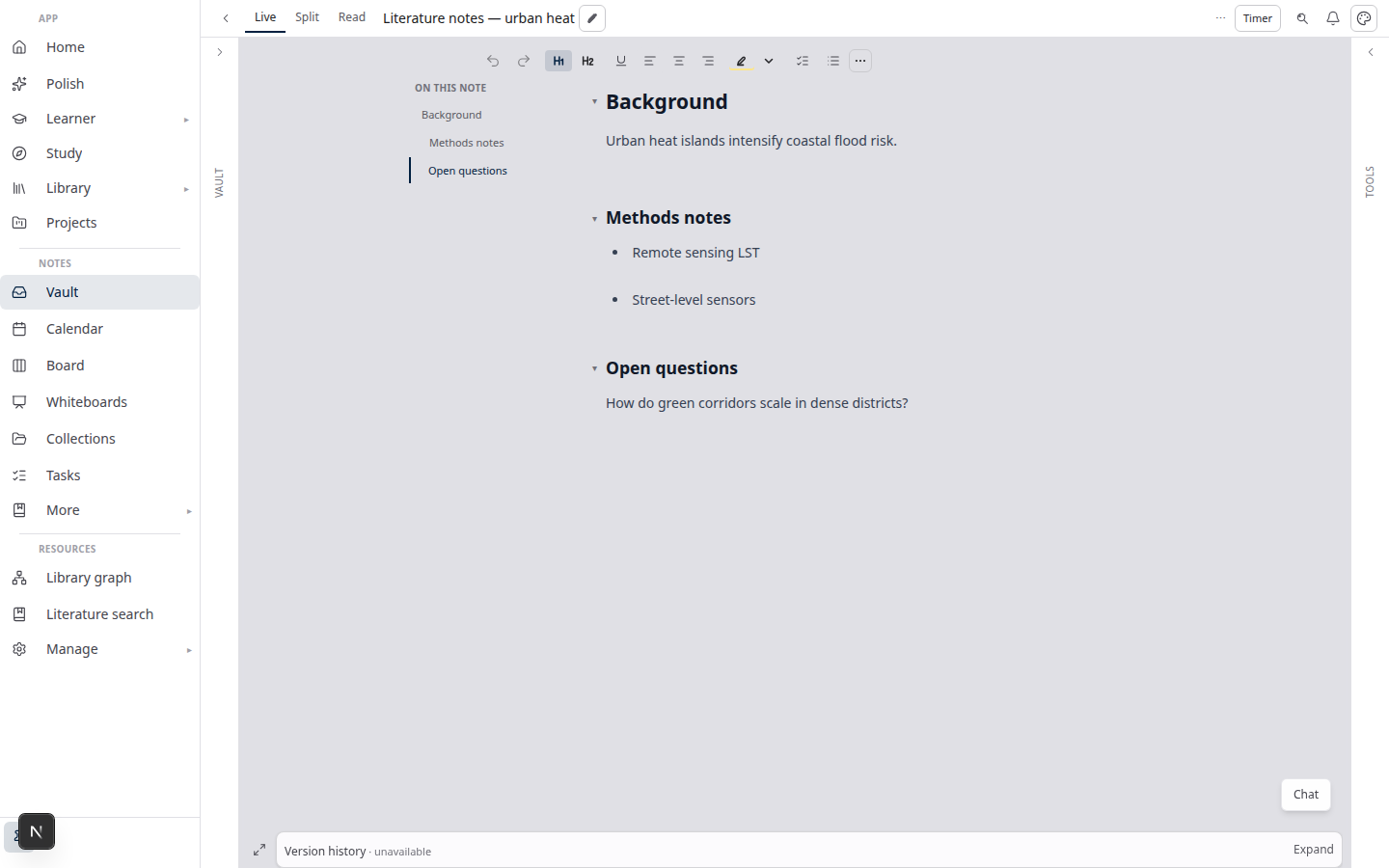
Lattuce Notes — Live editor and vault layout

Where version history lives

SurfaceWhat is versionedHow checkpoints are created
Notes vaultNote body, tags, and custom propertiesManual Save (hub chrome or shortcut) creates a checkpoint; autosave updates the live note without a new version
Paper sectionsSection draft textEach save creates a draft version; Take snapshot adds a labeled checkpoint you can find later

Open a note in Notes and expand the Version history bar at the bottom of the editor column. In Papers → Write, each section block includes a collapsible Version history panel under the editor.

Before you start: version history needs at least one checkpoint. On notes, use Save (not autosave alone); on sections, edit and save or use Take snapshot for a labeled milestone.

Three tiers — same engine, different shells

Version history uses one compare/restore engine with three presentation levels. You are never forced into a modal for a quick restore.

1. Inline (quick peek)

The default tier stays out of the way:

  • Notes — sticky footer bar: version count, expand/collapse, and a maximize control.
  • Sections — compact block under the section editor with expand/collapse and Take snapshot.

Select a version row to compare against the current (or base) version inline. Restore as new version opens a confirmation dialog — restore never silently overwrites history; it appends a new current version from the checkpoint you chose.

2. Focused overlay (read the diff)

Click the maximize control (or Version history in the section inspector) to open a large overlay — about 80% of the viewport on desktop, or a bottom sheet on phone layouts.

Focused mode is for reading a side-by-side diff with enough room to trust a restore. From here you can promote to workspace or close back to inline.

3. Workspace (long bodies and vA ↔ vB)

Open in workspace (or choose Version history (workspace) from the command palette) opens a right-hand panel (~45% viewport width on desktop) with three tabs:

TabPurpose
VersionsScroll the full list; load more on notes with long histories
DiffSide-by-side compare with highlighted changes
PreviewRead-only rendered markdown (notes) or plain text (sections) for the selected version

In workspace you can set any version as compare base (context menu or long-press) — useful when you want v3 against v7, not only against “current.”

Always workspace (checkbox in the overlay header) remembers your preference: the maximize button opens workspace directly next time.

Notes: checkpoints vs autosave

This distinction matters for lecture capture and daily notes:

  • Autosave keeps your live note up to date on the server. It does not add a row to version history.
  • Save (explicit checkpoint) creates a version you can compare and restore later.

If you only see “Current version only” in the footer, save once — you now have a baseline to diff against future checkpoints.

Version history also compares tags and custom properties, not just body text. Restoring an older version can bring back property values you changed in a later session (with the same confirm-before-restore flow).

Papers: snapshots and section drafts

Writer section history tracks draft versions as you edit. For deliberate milestones:

  1. Expand Version history on the section.
  2. Click Take snapshot and optionally add a label (for example Before structural edit).
  3. Continue writing — the snapshot stays in the list for compare and restore.

The section inspector links to version history when you need the focused overlay without scrolling the manuscript.

Command palette and dual-note layouts

On Notes, with a note open, open the command palette (Spotlight) and search Version history (workspace) to jump straight to the workspace tier.

On Write, the same command appears when a section is selected — it scrolls the matching section history into view and opens workspace.

When you use beside notes (note2= in the URL), the secondary note may hide the inline footer to save space. Use the overflow menu Version history on that pane; the overlay still opens and responds to palette commands.

Tips

  1. Before a big paste or refactor — save the note or take a section snapshot so you have a labeled rollback point.
  2. Properties and tags — on notes, select an older version and scan the diff before restoring; property-only changes show up in compare.
  3. Long note histories — use Load more versions inline, then open workspace for diff + preview on the pair you care about.
  4. Non-adjacent compare — in workspace, right-click (or long-press) a version → Set as compare base, then select another version to diff against that base.
  5. Prefer workspace every time — enable Always workspace once; maximize opens the tabbed panel directly.

Related reading

  • Notes view layouts in Lattuce — Live, Read, and sticky outline while you edit
  • Notes catalog layouts in Lattuce — browse the vault before you open a note
  • Lattuce vs research apps — where Notes and Writer fit in your research stack

Bottom line

Version history in Lattuce is checkpoint-oriented: explicit saves and snapshots you can compare, preview, and restore — not an ever-growing autosave stream. Use the inline footer for a fast restore, the focused overlay to read a diff with confidence, and workspace when you need tabs, a custom compare base, and a rendered preview of an older note or section.

PreviousHousehold billing and /pricing on Lattuce — transparent tiers for shared accountsNextWhy Lattuce is not trying to replace Notion

Workflow guides

  1. 1. Where you can use Lattuce today — cloud, Windows, and Android
  2. 2. Lattuce at lattuce.app is in alpha — what that means for you
  3. 3. Try Lattuce without signing up — interactive demos at lattuce.app/try
  4. 4. Leaving Lattuce cleanly — try first, delete when you need to
  5. 5. Literature review with Lattuce — from search to a cited Word file
  6. 6. Study vs Learner in Lattuce — exam prep or language learning?
  7. 7. Thesis format check in Lattuce — upload Word, fix layout, verify before you submit
  8. 8. BYOK on Lattuce — bring your own AI keys
  9. 9. Sources to DOCX in Lattuce — end-to-end manuscript workflow
  10. 10. BYOS on Lattuce — bring your own storage
  11. 11. Research missions in Lattuce — structured synthesis with evidence export
  12. 12. Use Lattuce from Cursor and Claude — your research in your IDE
  13. 13. Source Digest in Lattuce Study — audio, tables, mind maps, and flashcards
  14. 14. Workspace Ask for a household lab — grounded Q&A over your vault
  15. 15. Query canvas in Lattuce — live boards from your notes vault
  16. 16. Zotero to BibTeX in Lattuce — import, cite, and hand off bibliographies
  17. 17. Notes view layouts in Lattuce — Live, Read, and a sticky outline
  18. 18. Household admin's first week with Lattuce — checks and day-two tasks
  19. 19. Notes catalog layouts in Lattuce — Table, Board, Timeline, and saved views for your vault
  20. 20. Household billing and /pricing on Lattuce — transparent tiers for shared accounts
  21. You are here21. Version history in Lattuce — compare checkpoints, restore with confidence, and a three-tier workspace
  22. 22. Why Lattuce is not trying to replace Notion
  23. 23. Citation style preview in Lattuce — compare APA, MLA, Chicago, and more before you export
  24. 24. Research stack in 2026 — where Lattuce on lattuce.app sits
  25. 25. Supported citation formats in Lattuce — APA, Vancouver, Nature, and 27 more
  26. 26. Data residency for university labs in Malaysia
  27. 27. Why section approval beats realtime co-edit for academic papers
  28. 28. Research signals and feeds in Lattuce — headlines on home, sources in your library
  29. 29. Open catalogs Lattuce connects to — scholarly search, OA links, and books
  30. 30. How to export a cited thesis chapter to Word from Lattuce
  31. 31. Household Free vs Pro on lattuce.app — which plan fits your lab?
  32. 32. Try Lattuce Writer demo walkthrough — cited drafting without an account
  33. 33. Notes Live vs Read vs Split — when to use which in Lattuce
  34. 34. Citation styles for Malaysian universities in Lattuce Writer
  35. 35. From PDF highlight to cited paragraph in Lattuce
  36. 36. Leaving Notion pages in place — handoff checklist for Lattuce research
  37. 37. Alpha feedback — how to report useful bugs on lattuce.app

On this page

  1. Where version history lives
  2. Three tiers — same engine, different shells
  3. 1. Inline (quick peek)
  4. 2. Focused overlay (read the diff)
  5. 3. Workspace (long bodies and vA ↔ vB)
  6. Notes: checkpoints vs autosave
  7. Papers: snapshots and section drafts
  8. Command palette and dual-note layouts
  9. Tips
  10. Related reading
  11. Bottom line

Explore Lattuce

Start writing, compare tools, or browse tutorials for your research stack.

Try LattuceTutorialsPlans

Subscribe to Workflow guides: RSS · Atom

← All posts
TermsPrivacyCookiesRefundsFAQContact[email protected]

© Lattuce

Skip to content
Blog
  1. Blog
  2. /
  3. Workflow guides
  4. /
  5. Version history in Lattuce — compare checkpoints, restore with confidence, and a three-tier workspace

August 14, 2026 · Workflow guides

Version history in Lattuce — compare checkpoints, restore with confidence, and a three-tier workspace

Version history in Lattuce — compare note and paper checkpoints, preview older versions, and restore safely — inline, overlay, or workspace.

  • guide
  • notes
  • writer
  • ux
  • seo

Long notes and paper sections change in small steps. You rewrite a paragraph, adjust note properties, or take a snapshot before a risky structural edit — and an hour later you need to know what changed and whether you can go back without losing the trail.

Lattuce now ships a shared version history experience across Notes and Writer (paper sections). It is built as a ladder: a quick inline peek, a focused compare overlay, and a wider workspace when you need diff, preview, and restore in one place.

Lattuce Notes — Live editor and vault layout

Where version history lives

SurfaceWhat is versionedHow checkpoints are created
Notes vaultNote body, tags, and custom propertiesManual Save (hub chrome or shortcut) creates a checkpoint; autosave updates the live note without a new version
Paper sectionsSection draft textEach save creates a draft version; Take snapshot adds a labeled checkpoint you can find later

Open a note in Notes and expand the Version history bar at the bottom of the editor column. In Papers → Write, each section block includes a collapsible Version history panel under the editor.

Before you start: version history needs at least one checkpoint. On notes, use Save (not autosave alone); on sections, edit and save or use Take snapshot for a labeled milestone.

Three tiers — same engine, different shells

Version history uses one compare/restore engine with three presentation levels. You are never forced into a modal for a quick restore.

1. Inline (quick peek)

The default tier stays out of the way:

  • Notes — sticky footer bar: version count, expand/collapse, and a maximize control.
  • Sections — compact block under the section editor with expand/collapse and Take snapshot.

Select a version row to compare against the current (or base) version inline. Restore as new version opens a confirmation dialog — restore never silently overwrites history; it appends a new current version from the checkpoint you chose.

2. Focused overlay (read the diff)

Click the maximize control (or Version history in the section inspector) to open a large overlay — about 80% of the viewport on desktop, or a bottom sheet on phone layouts.

Focused mode is for reading a side-by-side diff with enough room to trust a restore. From here you can promote to workspace or close back to inline.

3. Workspace (long bodies and vA ↔ vB)

Open in workspace (or choose Version history (workspace) from the command palette) opens a right-hand panel (~45% viewport width on desktop) with three tabs:

TabPurpose
VersionsScroll the full list; load more on notes with long histories
DiffSide-by-side compare with highlighted changes
PreviewRead-only rendered markdown (notes) or plain text (sections) for the selected version

In workspace you can set any version as compare base (context menu or long-press) — useful when you want v3 against v7, not only against “current.”

Always workspace (checkbox in the overlay header) remembers your preference: the maximize button opens workspace directly next time.

Notes: checkpoints vs autosave

This distinction matters for lecture capture and daily notes:

  • Autosave keeps your live note up to date on the server. It does not add a row to version history.
  • Save (explicit checkpoint) creates a version you can compare and restore later.

If you only see “Current version only” in the footer, save once — you now have a baseline to diff against future checkpoints.

Version history also compares tags and custom properties, not just body text. Restoring an older version can bring back property values you changed in a later session (with the same confirm-before-restore flow).

Papers: snapshots and section drafts

Writer section history tracks draft versions as you edit. For deliberate milestones:

  1. Expand Version history on the section.
  2. Click Take snapshot and optionally add a label (for example Before structural edit).
  3. Continue writing — the snapshot stays in the list for compare and restore.

The section inspector links to version history when you need the focused overlay without scrolling the manuscript.

Command palette and dual-note layouts

On Notes, with a note open, open the command palette (Spotlight) and search Version history (workspace) to jump straight to the workspace tier.

On Write, the same command appears when a section is selected — it scrolls the matching section history into view and opens workspace.

When you use beside notes (note2= in the URL), the secondary note may hide the inline footer to save space. Use the overflow menu Version history on that pane; the overlay still opens and responds to palette commands.

Tips

  1. Before a big paste or refactor — save the note or take a section snapshot so you have a labeled rollback point.
  2. Properties and tags — on notes, select an older version and scan the diff before restoring; property-only changes show up in compare.
  3. Long note histories — use Load more versions inline, then open workspace for diff + preview on the pair you care about.
  4. Non-adjacent compare — in workspace, right-click (or long-press) a version → Set as compare base, then select another version to diff against that base.
  5. Prefer workspace every time — enable Always workspace once; maximize opens the tabbed panel directly.

Related reading

  • Notes view layouts in Lattuce — Live, Read, and sticky outline while you edit
  • Notes catalog layouts in Lattuce — browse the vault before you open a note
  • Lattuce vs research apps — where Notes and Writer fit in your research stack

Bottom line

Version history in Lattuce is checkpoint-oriented: explicit saves and snapshots you can compare, preview, and restore — not an ever-growing autosave stream. Use the inline footer for a fast restore, the focused overlay to read a diff with confidence, and workspace when you need tabs, a custom compare base, and a rendered preview of an older note or section.

PreviousHousehold billing and /pricing on Lattuce — transparent tiers for shared accountsNextWhy Lattuce is not trying to replace Notion

Workflow guides

  1. 1. Where you can use Lattuce today — cloud, Windows, and Android
  2. 2. Lattuce at lattuce.app is in alpha — what that means for you
  3. 3. Try Lattuce without signing up — interactive demos at lattuce.app/try
  4. 4. Leaving Lattuce cleanly — try first, delete when you need to
  5. 5. Literature review with Lattuce — from search to a cited Word file
  6. 6. Study vs Learner in Lattuce — exam prep or language learning?
  7. 7. Thesis format check in Lattuce — upload Word, fix layout, verify before you submit
  8. 8. BYOK on Lattuce — bring your own AI keys
  9. 9. Sources to DOCX in Lattuce — end-to-end manuscript workflow
  10. 10. BYOS on Lattuce — bring your own storage
  11. 11. Research missions in Lattuce — structured synthesis with evidence export
  12. 12. Use Lattuce from Cursor and Claude — your research in your IDE
  13. 13. Source Digest in Lattuce Study — audio, tables, mind maps, and flashcards
  14. 14. Workspace Ask for a household lab — grounded Q&A over your vault
  15. 15. Query canvas in Lattuce — live boards from your notes vault
  16. 16. Zotero to BibTeX in Lattuce — import, cite, and hand off bibliographies
  17. 17. Notes view layouts in Lattuce — Live, Read, and a sticky outline
  18. 18. Household admin's first week with Lattuce — checks and day-two tasks
  19. 19. Notes catalog layouts in Lattuce — Table, Board, Timeline, and saved views for your vault
  20. 20. Household billing and /pricing on Lattuce — transparent tiers for shared accounts
  21. You are here21. Version history in Lattuce — compare checkpoints, restore with confidence, and a three-tier workspace
  22. 22. Why Lattuce is not trying to replace Notion
  23. 23. Citation style preview in Lattuce — compare APA, MLA, Chicago, and more before you export
  24. 24. Research stack in 2026 — where Lattuce on lattuce.app sits
  25. 25. Supported citation formats in Lattuce — APA, Vancouver, Nature, and 27 more
  26. 26. Data residency for university labs in Malaysia
  27. 27. Why section approval beats realtime co-edit for academic papers
  28. 28. Research signals and feeds in Lattuce — headlines on home, sources in your library
  29. 29. Open catalogs Lattuce connects to — scholarly search, OA links, and books
  30. 30. How to export a cited thesis chapter to Word from Lattuce
  31. 31. Household Free vs Pro on lattuce.app — which plan fits your lab?
  32. 32. Try Lattuce Writer demo walkthrough — cited drafting without an account
  33. 33. Notes Live vs Read vs Split — when to use which in Lattuce
  34. 34. Citation styles for Malaysian universities in Lattuce Writer
  35. 35. From PDF highlight to cited paragraph in Lattuce
  36. 36. Leaving Notion pages in place — handoff checklist for Lattuce research
  37. 37. Alpha feedback — how to report useful bugs on lattuce.app

On this page

  1. Where version history lives
  2. Three tiers — same engine, different shells
  3. 1. Inline (quick peek)
  4. 2. Focused overlay (read the diff)
  5. 3. Workspace (long bodies and vA ↔ vB)
  6. Notes: checkpoints vs autosave
  7. Papers: snapshots and section drafts
  8. Command palette and dual-note layouts
  9. Tips
  10. Related reading
  11. Bottom line

Explore Lattuce

Start writing, compare tools, or browse tutorials for your research stack.

Try LattuceTutorialsPlans

Subscribe to Workflow guides: RSS · Atom

← All posts
TermsPrivacyCookiesRefundsFAQContact[email protected]

© Lattuce